
- cnc
- cam workflow
- cut order
- toolpaths
- cnc routing
CNC Cut Order: Pockets Before the Outer Profile

The outside profile is the operation that changes a workpiece into a loose part. Cut it first and the remaining holes, pockets, and edges no longer share a dependable machine reference. The short answer is the cnc cut order: machine every internal feature first, then cut the outer profile with tabs or a final skin holding the part until the last pass.
Start the CAM setup from the sheet, not the part
Open the file in Fusion's Manufacture workspace and create Setup > New Setup. Set the Model Orientation and Origin deliberately, then define the stock under the Stock tab. For sheet work, Relative size box is convenient, but a measured stock box is safer when the edges will be used as references.
The stock must describe what is physically on the machine, not what the finished model measures. If the sheet is 18 mm thick, account for that actual thickness, spoilboard surfacing, and any uneven top face. Set the WCS origin at a corner or another point you can probe or touch off consistently. The origin does not have to be in the model's original drawing location.
Before making a toolpath, check three things in the setup:
- The Z direction points away from the spoilboard.
- The stock covers the whole model with enough room for clamps and the cutter's path.
- The model's bottom is above, or coincident with, the stock bottom in the way your machine expects.
A useful check is to turn on stock display and rotate the setup. If the model appears partly outside the stock or below its bottom face, stop there. A perfect operation order cannot rescue a bad setup.
Machine holes and pockets while the sheet still holds the part
The first operations are internal features. In Fusion, use 2D Hole for supported drilled or bored holes, 2D Pocket for recessed areas, and 2D Contour for internal cutouts that need a routed perimeter. Select the geometry from the model, then inspect the preview rather than trusting the name of the operation.
For a pocket, set the Geometry selection, then check the Heights tab. Top Height normally references the selected face or stock top, while Bottom Height defines the pocket floor. A bottom offset can leave a deliberate floor; a through-pocket must pass through the stock by the small amount your workholding and spoilboard can tolerate. Do not treat that extra depth as universal. It depends on stock thickness, Z accuracy, and whether the cutter may touch the spoilboard.
For a hole operation, verify the hole diameter against the tool diameter and the machine's ability to interpolate or drill it. A small hole made with a large end mill is not the same operation as a drilled hole. The tool, chip clearance, spindle speed, feed rate, and hole depth all affect whether chips pack in the cut.
Our normal operation order inside the file is:
- Drilled or interpolated holes that help with locating or fastening.
- Deep pockets and narrow internal cuts, while the sheet has maximum support.
- Shallow pockets and broad internal areas.
- Internal contours and cutouts.
- The outer profile last.
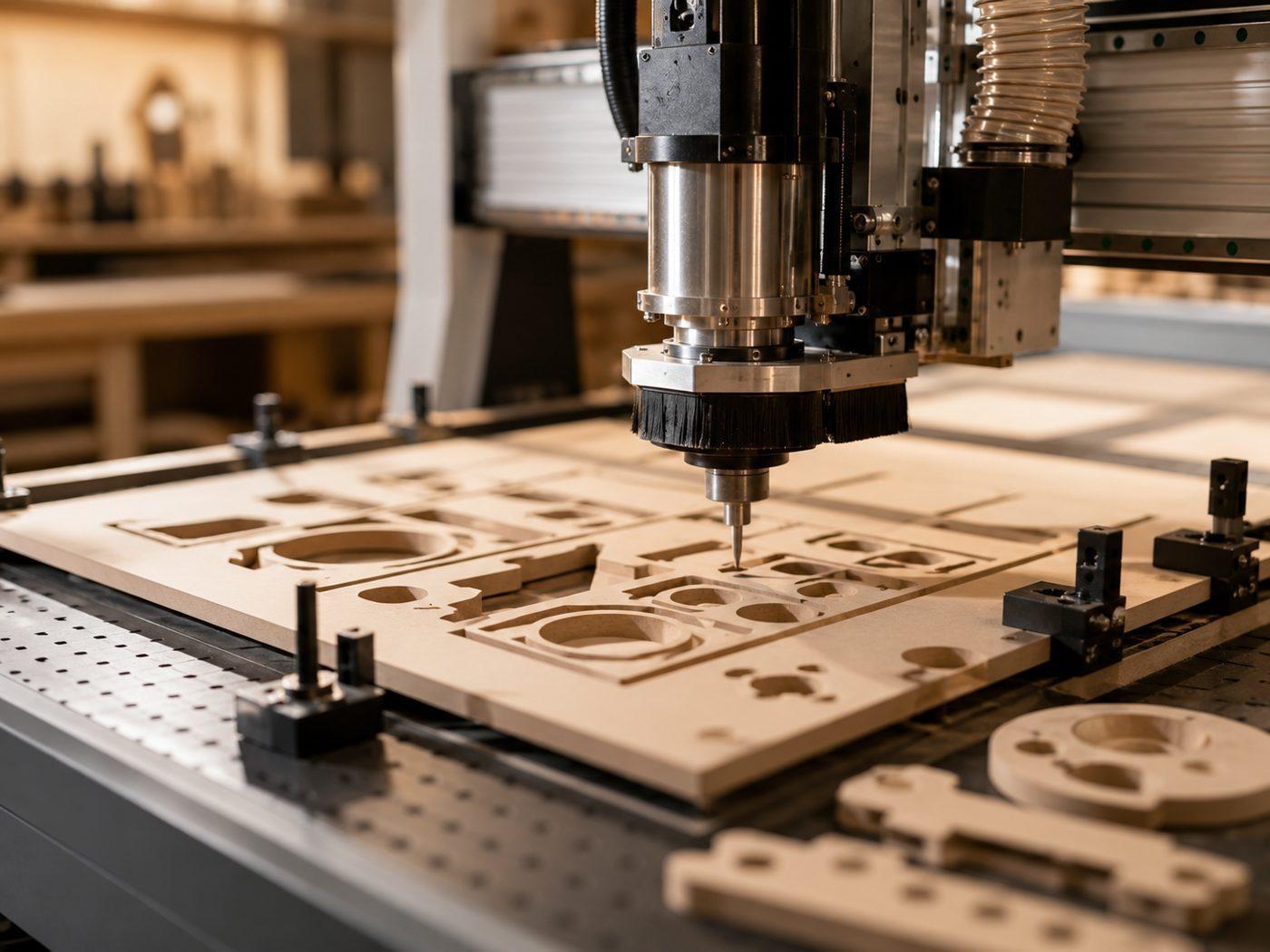
The exact order among the first four can change. The fixed rule is that they precede the outside profile. Holes and pockets are machined before the outer profile because the sheet still registers the part against the machine's origin and workholding.
The point where most setups diverge
Most beginners create a 2D Contour for the outside edge, press calculate, and run it before thinking about tabs. That is the setup divergence that matters here. A part that has been cut free is no longer registered to the machine. It may remain in the same-looking location, but cutter force, vibration, a loose chip, or a vacuum change can move it. A later pocket operation can then be correct in the file and wrong on the material.
The outside profile belongs at the end of the operation order. In the contour's Geometry tab, select the outside edge, confirm the arrow direction, and choose a toolpath side that places the cutter outside the finished boundary. A wrong side changes the part size by roughly the cutter radius, which is enough to ruin a fit.
Use the Tabs controls in the contour operation when the part needs mechanical holding. Set tab width, tab height, and quantity according to the material, part size, cutter load, and how safely you can remove them. Tabs that are too small shear during the profile; tabs that are too large create unnecessary cleanup. For a thin sheet or a part with a fragile perimeter, a remaining bottom skin can be more predictable than a few tall tabs, provided the final separation pass is planned.
Do not place tabs across holes, pockets, or edges that must remain clean. Check the toolpath from above and below. Fusion's simulation can show whether the part separates earlier than intended, but it cannot know that a clamp is blocking the cutter unless the fixture is modeled or otherwise accounted for.
Set cutting depth and feeds from the material
There is no universal feed rate for this workflow. Feed depends on cutter diameter, flute count, spindle speed, material, depth of cut, machine rigidity, chip evacuation, and the toolmaker's recommended chip load. A useful starting calculation is:
feed rate = chip load × flute count × spindle speed
Use the cutter manufacturer's chip-load range as the starting input, then reduce radial engagement or depth before making a large feed change. A full-width pocket pass loads the cutter more heavily than a light finishing pass. Plywood glue, solid wood grain, plastics, and composite sheet can each push the usable range in different directions.
Create a separate roughing operation and finishing pass when edge quality or dimensional control matters. Leave a small radial allowance for the finishing contour, then remove it with a lighter pass. The allowance must be large enough to leave material after runout and deflection, but not so large that the finishing pass becomes another heavy cut.
| Operation | What still holds the material | Main depth concern | Common failure mode | Place in order |
|---|---|---|---|---|
| Hole | Full sheet and workholding | Breakthrough and chip packing | Oversize hole or stalled tool | Early |
| Full sheet and workholding | Floor depth and spoilboard clearance | Uneven floor or excess load | Before profile | |
| Internal contour | Full sheet and workholding | Full-depth side load | Feature shifts during a later cut | Before profile |
| Outer profile | Tabs, skin, or remaining bridges | Separation timing | Loose part moves or cutter grabs it | Last |
Make a small test cut when the material or tool changes. Measure a pocket floor, check a hole with the intended fastener, and measure the outside profile after tabs are removed. That test tells you more than copying a feed value from a different router.
Simulate, post, and verify the machine file
Run Actions > Simulate in Fusion and enable stock comparison if available in your version. Watch the timeline in order. Internal features should appear before the outside boundary disappears. Pause at the first profile pass and confirm that tabs or the bottom skin still connect the part to the sheet.
Inspect the Toolpath display for rapid moves over clamps, retract heights, and the final contour direction. In the setup's Heights tab, the Clearance Height and Retract Height must clear the workholding, not just the model. Those values are machine- and fixture-dependent, so measure the highest obstruction rather than borrowing a default.
After posting the G-code, open it in the control software or sender if that is part of your machine's workflow. Confirm the selected post processor, units, work offset, tool numbers, and initial Z behavior. A correct Fusion setup can still produce a bad run if the post or machine offset does not match the controller.
At the machine, keep the first run under supervision. Start with the tool above the work if your controller permits a safe dry run, then verify the first hole and the first pocket before allowing the profile operation. If the internal geometry is wrong, stop before the sheet is released. Once the outer profile has cut through, registration is gone and a restart is no longer a normal continuation of the same setup.
Frequently asked questions
Can the outside profile ever be cut first?
Only if no later operation depends on the part staying registered, or if the part has a separate locating method that remains reliable after separation. For ordinary sheet work, cut internal features first and the outside profile last. That is the safer default because the sheet supplies the reference and the workholding.
Should tabs be used on every CNC profile?
No. A shallow bottom skin, vacuum workholding, screws outside the toolpath, or another fixture may be better. Tabs are useful when the part can move after a through-cut, but they add cleanup and can distort a small perimeter. Choose the least disruptive method that keeps the part fixed through the final pass.
Why did my pocket shift even though the G-code was correct?
The part may have separated during an earlier contour, the sheet may have moved in the workholding, or the setup origin may not match the machine's actual work offset. Check the simulation timeline first, then inspect tabs, clamps, spoilboard contact, and the controller's offset before changing toolpath coordinates.
We build CNC-cut parts to order through The Boss Factory.
Related services
All services →
Have a project in mind?
Tell us what you want built — we reply within 24–48 hours.