
- file prep
- outline fonts
- convert text to paths
- laser cutting
- cnc
- vector files
Outline Fonts: File Prep That Cuts Correctly
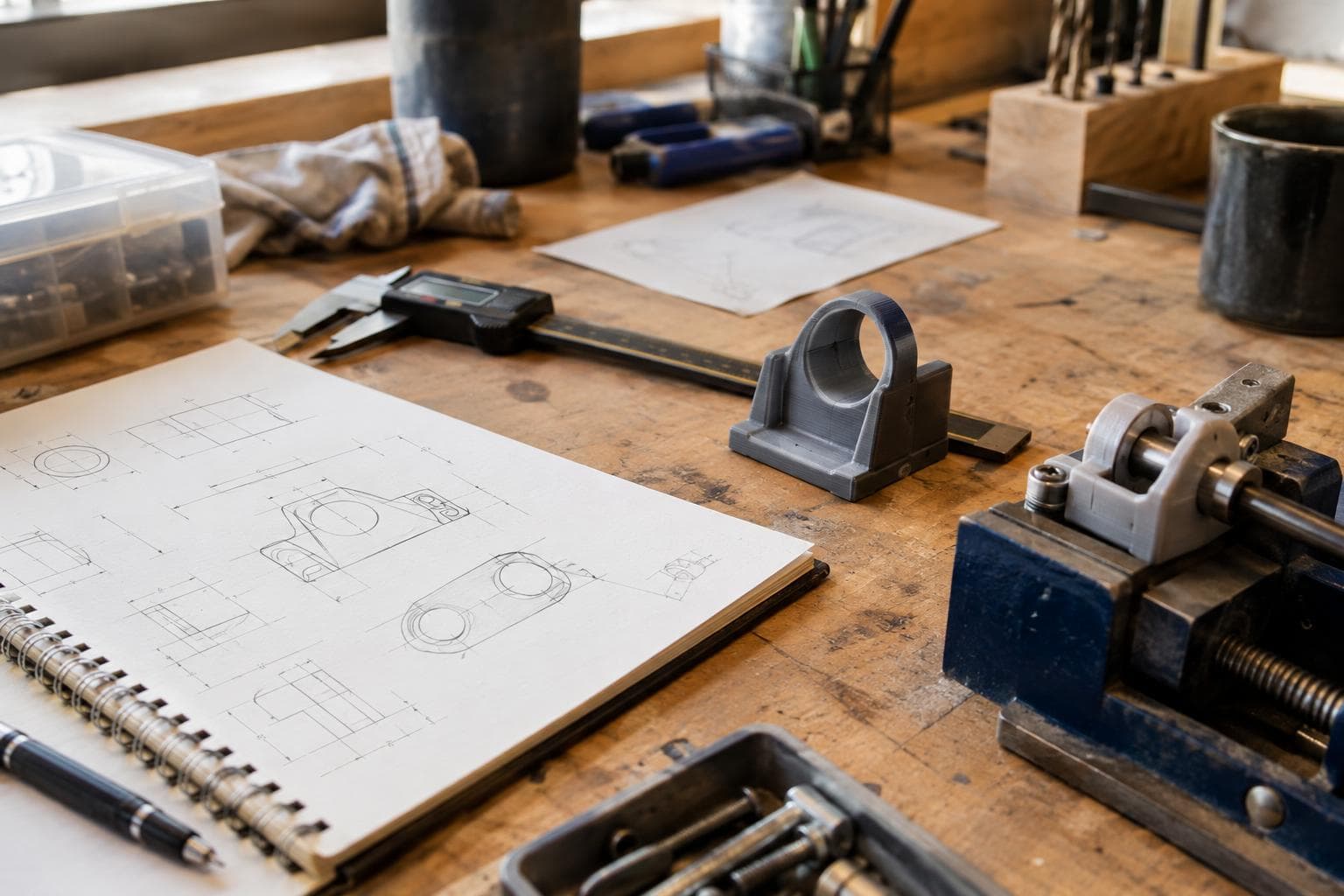
A file can look correct on your screen and still cut the wrong letters, the wrong size, or twice along every edge.
Convert text to paths before export
A vector file references a font by name unless the text is converted to paths. That reference may work on your computer and fail on the next computer, in the design app used for CAM, or in the machine software. If the font is missing, the software may substitute another font. The substitute is what gets cut.
Select every text object and use the command named Convert to Paths, Create Outlines, or a similar term. The result should be made from vector nodes and curves, not a text object with a font family, style, and size attached to it. Save an editable copy first, then make a separate production copy with the text converted.
Check the letters after conversion. Small counters in a, e, o, and R can close up after scaling or cutting. Thin strokes can also disappear in plywood, acrylic, or a painted surface. For engraved text, use a font with open shapes and enough spacing for the tool or laser spot. For cut-out lettering, check that enclosed islands are supported by the surrounding design or connected with intentional bridges.
“Outline fonts” is often used to mean text whose outlines have been converted to paths. It does not mean the font is automatically licensed for your use. Font licences vary, and commercial use is not automatic. Read the licence for the font and the project before using it in a saleable sign, product, award, or other paid work. Converting the letters to paths changes the file structure, not the licence terms.
Set scale, units, and geometry for the machine
Start the document in the units you will use to measure the material. Millimetres are a practical choice for most fabrication files, but inches are fine if the entire workflow uses inches. The dangerous setting is not the unit itself. It is a mismatch between the document, the export, and the import dialog.
Use these conventions before exporting:
- Set the page or artboard to the intended finished size, or make the finished boundary unmistakable.
- Work at 1:1 scale. Do not scale a drawing to fit the screen or a page unless that scaling is deliberate and recorded.
- Put the design near the origin if the machine software expects origin-based coordinates, but do not move it after checking dimensions.
- Use closed paths for parts that must be cut out. A visible shape is not proof that its path is closed.
- Remove hidden construction lines, duplicate objects, clipping masks, guides, and unused layers from the production copy.
- Decide what colour, layer, or line style means cut, score, and engrave, then keep that convention consistent.
- Convert strokes to paths when the stroke width is part of the finished geometry. A hairline stroke may be interpreted as a machine instruction rather than a physical width.
- Keep a dimensioned reference object outside the cut area, or record the finished width and height in the file name and notes.
Do not rely on screen appearance to confirm scale. Draw or measure a known dimension, export it, import it into the machine software, and measure it there. If a 100 mm reference arrives as 100 inches, 10 cm, or an unmeasurable object, stop before loading material.
Choose an export format by what must survive
There is no universal best format. Use the format your machine software imports with the fewest conversions. A format that preserves curves but loses layer meaning can be worse than a less elegant format that your workflow reads predictably.
| Format | What it preserves well | Main setup concern | Typical failure mode |
|---|---|---|---|
| SVG | Paths, curves, and named or coloured objects in many design workflows | Unit handling and transforms vary between importers | The design imports at the wrong size or with transforms applied |
| DXF | CAD-style line and arc geometry at a defined scale | Version, units, splines, and layer interpretation depend on the importer | Curves become segmented, layers merge, or the drawing arrives with a scale mismatch |
| Page size, vector curves, and a useful visual proof | Some importers treat it as print artwork rather than machine geometry | Fonts remain live, strokes are interpreted inconsistently, or only part of the page imports |
For a laser workflow, SVG is often the most convenient starting point if the design and machine software both handle it predictably. For CNC work, DXF is often the better choice for simple planar geometry because dimensions and layers have a CAD-oriented structure. Use PDF as a proof or as a production format only when you have already tested how the receiving software interprets it.
Export with text converted to paths, paths rather than live effects, and no automatic “fit to page” option. If the exporter offers a choice between document units and user units, keep the selection consistent and verify the result with a known dimension. Disable rasterisation unless the job genuinely includes an image.
Inspect the bad file before it reaches material
A bad file usually announces itself in the machine software, but only if you inspect the imported geometry instead of pressing start. Zoom into corners, select individual objects, and compare the imported dimensions with the design copy.
Here is what the common failures look like:
Substituted text
The lettering has a different width, weight, or spacing from the design. A word may extend beyond its sign panel, counters may be filled, or a line of text may wrap. In a cutting workflow, the machine follows the substitute glyph outlines. It does not know which font you intended.
Duplicate paths
The preview looks darker or shows two nearly identical lines. Selecting one visible edge may reveal another object directly underneath. The machine follows both, which can leave a wider mark, scorch the edge, waste time, or cut a part loose before the intended sequence.
Open contours
A profile looks closed to your eye, but its first and last nodes are separate. The machine may leave a small tab, refuse to generate a profile, or treat the shape as an engraving line. Use the software’s close-path or join command, then inspect the nodes at every seam.
Wrong scale or position
The imported drawing is the right shape but the wrong size, or it is far from the expected origin. A unit mismatch can make a design too large for the material before any warning appears. A stray object far away can also make the machine calculate an unexpectedly large work area.
Unwanted masks and effects
A clipping mask can hide geometry without deleting it. A live offset, stroke, blend, or boolean effect may be displayed correctly in the design app but be ignored or expanded differently by the receiving software. Expand effects deliberately, remove the original objects where appropriate, and inspect the resulting paths.
Our preflight sequence is short because each check answers a different failure mode:
- Open the production copy, not the editable master.
- Confirm the document units and one known finished dimension.
- Select all text and confirm that no text objects remain.
- Remove hidden, duplicate, and off-page geometry.
- Check closed profiles, open engraving paths, and intended cut or score layers.
- Export, close the design app, and reopen the exported file in the machine software.
- Preview the toolpath or laser path and check the order, origin, and dimensions.
- Run a small material test when the file contains fine lettering, tight internal corners, or unfamiliar geometry.
The last step is not a substitute for file inspection. A test can reveal kerf, burn, chip load, or material behaviour, but it cannot repair a missing letter or a substituted font.
Keep production files understandable
A useful file name carries the information needed after the design window is closed. Include the project identifier, finished size, units, revision, and process if those distinctions matter. For example, a convention such as panel-240x160mm-r03-laser.svg is more useful than final-final-new.svg.
Keep three versions when the work may need revision:
- The editable master with live text and design history.
- The production file with text converted to paths and unnecessary objects removed.
- The machine-ready export that has been reopened and checked in the receiving software.
Do not overwrite the master with outlined text. Once the letters are paths, changing the wording or font requires rebuilding them. Do not overwrite a checked export after a late edit without repeating the preflight. Revision numbers matter because a machine-ready file is a manufacturing instruction, not just an illustration.
A low-cost workflow is enough for most flat signs, panels, templates, and simple cut parts: a vector editor, a consistent naming scheme, and a receiving-software check. A font manager, automated preflight tool, or paid export plug-in fixes problems only when your current process has repeated files, many operators, or a known format limitation. Spend the time checking the actual imported geometry first.
Frequently asked questions
Do I need to convert text to paths in an SVG?
Yes, if the SVG is going to another computer or software package and you need the lettering to remain exact. An SVG can contain live text that refers to a font by name. Convert the text to paths, then reopen the exported SVG in the receiving software and inspect the glyphs.
Should I use SVG or DXF for CNC and laser files?
Use the format that your receiving software imports with reliable scale, curves, layers, and units. SVG is often practical for laser artwork. DXF is often preferable for CAD-like planar geometry used in CNC. Export a small test file containing a circle, a rectangle with a known dimension, an internal cut, and a text sample converted to paths before committing the full design.
Why does my file look right but cut double lines?
The file probably contains duplicate paths, an expanded stroke sitting over its original path, or overlapping shapes created by a boolean operation. Select and move suspected objects away from the design, use a duplicate-object or overlap check, and preview the machine path. Delete or merge the unwanted geometry before exporting again.
The Boss Factory builds made-to-order laser cutting and engraving, CNC and precision cutting, and 3D printing and prototyping.
Related services
All services →
Have a project in mind?
Tell us what you want built — we reply within 24–48 hours.